
IPTV Extreme: Features,Setup,and Safety Guide Setup by Setup
IPTV Extreme is a streaming app for live TV, playlists, and on-demand content, and it can make channel access feel much more organized on your device. If you’re new to it, the setup can seem a little confusing at first, especially when you’re sorting out playlists, player settings, and what the app actually supports.
This guide keeps things simple. You’ll see what IPTV Extreme does, how it works, how to set it up, and what to watch out for before you start using it.
How IPTV Extreme Works Behind the Scenes
IPTV Extreme works as a player, not a content source. That means it needs a playlist or service access from you before it can show anything. Once that input is added, the app organizes channels, guide data, and available media into a cleaner TV-style experience.
Behind the scenes, the app takes the data you provide and turns it into something easier to browse. Instead of flipping through raw links or messy files, you get a channel list, an electronic guide, and playback options in one place.
M3U playlists, EPG data, and what they mean
An M3U playlist is a file or link that contains channel or stream addresses. In plain terms, it tells the app what to load and how to group it. When you add a playlist, IPTV Extreme reads that list and displays the channels inside it like a TV lineup.
EPG data means electronic program guide data. This is what gives you the on-screen schedule, show titles, start times, and program details. Without it, you may still get channels, but you lose the guide that makes browsing much easier.
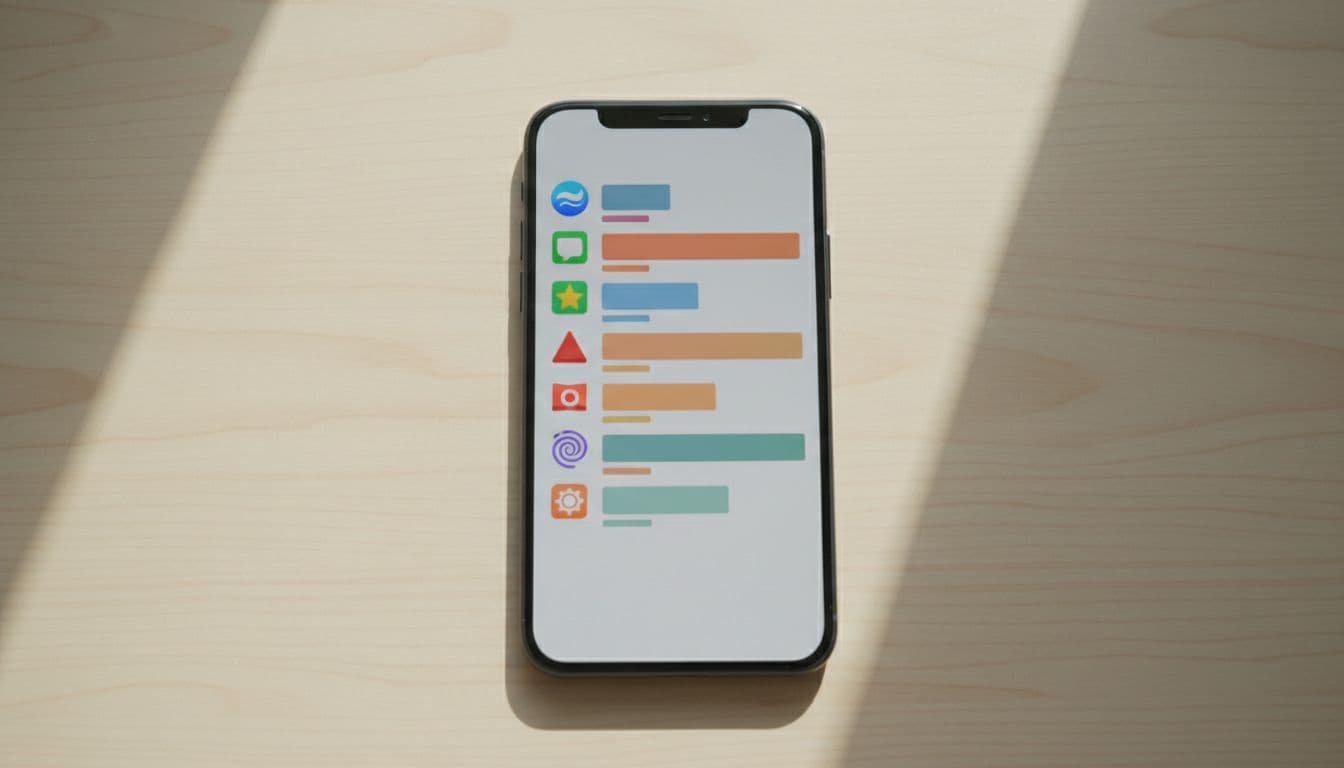
The two pieces work together. The playlist brings in the channels, while the EPG adds the TV guide layer that helps you see what is on now and what comes next. That matters because it turns a simple stream list into something that feels closer to a regular TV service.
If the playlist is the shelf, the EPG is the label that tells you what each item is.
This also explains why setup quality matters. A good playlist with matching EPG data gives you a much smoother experience. If the guide data is missing or out of sync, the channels may still load, but the browsing experience feels incomplete.
Supported content types you can expect
IPTV Extreme can handle more than live TV, but what you actually get depends on the source you add. The app can display different media types, yet the provider or playlist decides what is available.
Here are the main content types people usually look for:
- Live channels: Real-time TV streams that act like a traditional channel lineup.
- Video on demand: Movies, shows, or clips you can start whenever you want.
- Catch-up TV: Earlier broadcasts that you can watch after they air, if the source includes that feature.
- Radio streams: Audio-only stations, when the playlist includes them.

The key point is simple, the app does not create the content. It only organizes and plays what your playlist or service gives it. So if a channel, movie, or catch-up option is missing, the source is usually the reason, not the app itself.
That separation matters when you troubleshoot. If one stream works and another does not, the issue often sits with the provider link, stream quality, or guide data rather than IPTV Extreme.
Key Features That Make IPTV Extreme Stand Out
IPTV Extreme stands out because it focuses on control. You can shape the app around your own playlist, your viewing habits, and your family setup instead of forcing a rigid layout.
That matters when you deal with long channel lists or mixed content. The app gives you tools that make browsing faster, cleaner, and easier to live with day after day.
Playlist management and channel organization
One of IPTV Extreme‘s strongest features is how well it handles a large playlist. You can add a source, group channels by category, and move through the list in a way that feels much less chaotic.
The app also lets you mark favorites, which helps a lot when you only watch a small set of channels often. Instead of scrolling through hundreds of entries, you can jump straight to the ones you actually use.

Sorting and grouping are useful for more than convenience. They turn a long, messy playlist into something closer to a normal TV guide, so you waste less time hunting for a channel.
You can also manage channels and groups in a way that fits your routine. That might mean keeping sports in one group, news in another, and favorites at the top for quick access.
Built-in player controls and viewing options
IPTV Extreme also gives you playback tools that make viewing more flexible. You can use subtitle options, change the aspect ratio, rotate the screen, and open content in an external player when needed.
That kind of control matters when streams don’t all behave the same way. Some look better stretched to fit, while others need a different ratio to avoid cropping or black bars.

External player support is another practical plus. If your preferred player handles a stream better, you don’t have to stay locked into one viewing setup.
The real advantage is control. You can adjust playback to match the stream, the screen, and the way you like to watch.
Parental controls, reminders, and favorites
For households, IPTV Extreme has features that make the app easier to share. Parental controls help limit access to channels you don’t want children browsing, which adds a useful layer of peace of mind.
Reminders are just as helpful. They let you keep track of shows or channels you don’t want to miss, so the app feels more personal and less like a raw list of streams.

Favorites tie everything together. When you save the channels you watch most, the app starts to feel like your own setup instead of a generic player.
For everyday use, that makes a real difference:
- Faster access to the channels you use most.
- Better control over what kids can see.
- Less clutter when your playlist keeps growing.
- A more personal layout that fits your routine.
These features are what make IPTV Extreme appealing to people who want more than basic playback. If you care about order, control, and easy access, the app gives you a solid set of tools to work with.
How to Set Up IPTV Extreme on Your Device
Setting up IPTV Extreme is usually quick once you have the right details ready. The app needs a valid playlist or login source before it can show anything, so the first job is making sure your access info is correct and current.
A smooth setup starts with two things: a safe app install and the right service details. Get those right, and the rest feels much easier.
Download and install the app safely
Most users get IPTV Extreme from a trusted app store or a reliable source recommended by the device platform. That matters because IPTV apps are often copied, renamed, or bundled with unwanted files on unofficial sites.
Always check the publisher name, app reviews, and download source before installing. A trusted source lowers the risk of fake apps, broken builds, and privacy problems.

After installation, open the app once so it can request any needed permissions. If your device asks for network, storage, or playback access, review each prompt before you accept it.
A safe install is the easiest place to avoid trouble later.
If you use an Android device, the app may also ask you to allow media access or background activity. Grant only what the app needs to load and play your content.
Add your playlist or login details
Once the app is installed, the next step is adding your source. IPTV Extreme usually works with playlist-based access, so you will need the details from your service before you begin.
The exact setup path depends on what your provider gives you. In many cases, you will enter one of these:
- M3U playlist link: A URL that loads your channel list into the app.
- Xtream-style login details: Usually a server address, username, and password.
- Other supported service data: Some providers give a file, code, or custom access method.

Start by opening the playlist or account section inside the app. Then enter your details exactly as provided, because one wrong character can stop the list from loading.
If the app asks for a name for the playlist, choose something simple. A short label like “Home TV” or “Sports List” makes it easier to manage later.
After you save the details, wait for the app to load the channels and guide data. If your source is valid, the app should begin filling in categories, stations, and any available program info.
Fix common setup problems fast
If the app opens but nothing shows up, check the basics first. Small input mistakes cause most setup problems, and they are easy to miss.
The most common issues are:
- Wrong playlist link: Copy the full URL again and make sure nothing is cut off.
- Expired login details: Confirm that your username, password, or access code is still active.
- Missing EPG data: Reload the guide or recheck the guide URL if your provider gave one.
- Empty channel list: Try a refresh, then confirm the service actually includes channels.

If the playlist loads but channels still won’t play, test your internet connection first. A weak network can make the app look broken when the stream is really the problem.
Also, restart the app after each change. That simple step often clears stuck data and helps the new settings load properly.
When nothing changes, remove the old playlist and add it again from scratch. A fresh entry often fixes bad formatting, broken sync, or a list that failed to import the first time.
Is IPTV Extreme Legal and Safe to Use?
IPTV Extreme itself is just a player. That means the app does not provide channels, movies, or TV rights on its own. Because of that, the legal answer depends on the content source, your region, and how that content is licensed.
If you use a legal playlist or a licensed IPTV service, the app can be fine to use. If you load pirated streams, the app does not make them legal. The tool is neutral, but the source you connect to is not.
Why the content source matters more than the app
The app and the content are two separate things. IPTV Extreme can organize and play a playlist, but it does not control whether that playlist has the right to share the streams.
That is why you should check the provider before you add anything. Look for clear company details, a proper subscription page, and terms that explain what you are paying for. If a service seems vague about rights or the source of its channels, treat that as a warning sign.

Copyright rules also matter. Even if a stream opens inside the app, that does not mean you have permission to watch it. Local laws vary, so a service that is fine in one place may still be restricted in another.
A player can be legal, while the stream you load into it is not.
So the safest approach is simple. Use IPTV Extreme with content from providers you trust, and avoid anything that looks unlicensed, copied, or hidden behind vague offers.
How to stay safer while streaming
You can lower the risk a lot with a few simple habits. These steps also help protect your privacy and keep your device in better shape.
Start with trusted downloads. Get the app from a reliable source, and avoid modified APK files or random mirrors. Unofficial downloads can carry malware, fake permissions, or broken builds.
Use a strong password for any service account you create. If the provider supports it, turn on extra login protection. Reusing old passwords makes account theft much easier.
A secure network matters too. Home Wi-Fi with a strong password is safer than public hotspots. If you must stream outside your home, avoid entering account details on open networks.
Be careful with unknown playlists or services. If a playlist appears out of nowhere, asks for odd permissions, or promises huge channel bundles for almost no money, pause before you add it. Those offers often come with privacy risks or unreliable links.
A few good habits go a long way:
- Check the source before adding any playlist or login.
- Keep app updates current so you get fixes and security patches.
- Review permissions and remove anything the app does not need.
- Use only services that explain their rights and billing clearly.

In short, IPTV Extreme can be used safely when you pair it with legitimate content, safe downloads, and basic account care. The app is only part of the picture, so the source behind it deserves the most attention.